I get why ppl are leaving tumblr but ive never deleted an account for anything in my life and if tumblr wants me to leave theyre going to have to kill me themselves
For people who want to use Dreamwidth, but are totally confused about how it works!
What is Dreamwidth?
Dreamwidth is a social media platform founded in 2009 after Strikethrough
It’s made out of a heavily-modified version of Livejournal code
It’s based around producing your own original content, and seeing original content other people post
The site is owned and run by fans and aims to provide creative people with an Internet home
Getting around your account
Your journal is like your “home”. It’s where you keep your stuff. It’s got different parts:
Recent Entries: View your posts in chronological order
(yourusername.dreamwidth.org)
Profile: Your “about” page
(yourusername.dreamwidth.org/profile)
Archive: See your posts as a calendar
(yourusername.dreamwidth.org/archive)
Tags: See all the tags you’ve used and go to their posts
(yourusername.dreamwidth.org/tag)
Memories: Like the “Likes” feature on Tumblr
You also have a “Reading” page (yourusername.dreamwidth.org/read)
This is like your Tumblr dash
It’s where you read entries from your “circle”, the people and communities you’re subscribed to
You can customize it a lot with filters and control who you see when
You also have a “Network” page (yourusername.dreamwidth.org/network)
This is where you see posts from everyone that everyone in your circle subscribes to
It’s a great way to discover new stuff and also learn what awful taste some of your circle members have
Finding new things
Listing an Interest in your profile is like getting listed in the phonebook. This is opt-in, choosing to say, “Yes! I’m really into this thing! Consider me a person who blogs about it!
Content Search is the more powerful way to search through the blog of everyone who’s opted into it, so you can look for everyone who’s posting about a certain thing right now. However, you’ll have to wade through a lot more junk.
Communities are Dreamwidth’s social hubs. They’re places where a lot of people can share content they’re interested in and talk to each other. Unlike Tumblr tags, they’re managed by specific people and have rules, so people behaving badly can get kicked out.
Latest Things is a direct firehose of EVERYTHING PUBLICLY POSTED TO THE SITE, HOMG
Privacy controls?! That’s a thing?!
You get to choose who sees your posts! You can make your posts public, private, or “locked”, which means only people you’ve added to your access list can read them
When you add a new person to your circle you can choose to subscribe to them, to make their posts show up on your Reading page, and/or to grant access, which lets them see your locked posts. You can do one, the other, or both!
Likewise, communities can make posts viewable to members only.
You can also create custom access filters, to allow only some of your access list to see a post.
Banning someone means they cannot leave you comments or send you messages. There are more advanced tweaks to make sure they never show up on your reading page if they post to a community you subscribe to, or remove them from the comments on a post.
Comments
The comments to a post are where the real fun happens.
Comments are sent to the email of whoever you’re replying to. They’re a real conversation. You’re not shouting into the void–you’re talking back directly to the post’s originator and other commenters.
You can edit your comment so long as it hasn’t been replied to, and you can delete your own comments.
The originator of the post, and administrators if it’s a community, can delete threads, or “freeze” them, leaving them intact but preventing anyone from replying to them.
You will add new skills to your resume
Dreamwidth leaves a lot more “backend” open so you can customize your experience to a huge degree. However, this means learning or using coding languages like HTML and CSS
The comment box on entries does not have a built-in text editor, so you will have to add your own HTML if you want to add <i>italic</i>, <b>bold</b>, or <a href=“http://websiteurl.com”>links</a>.
replying is how you make friends! reply to anything you want and be friendly. don’t make rude jokes if you’re not friends already though!
quote retweeting is a no-no. when you “retweet with a comment” it’s not liked by content creators because it makes a new tweet out of their tweet and they don’t get the likes and retweets they would get if you’d just retweeted it straight up. if you want to comment on a retweet, reply to it or post a new tweet starting with “LRT” which stands for “last retweet” (it’s fine to quote retweet dumb memes and so on.)
you can make your tweets private. this means no one but your followers will be able to see what you post and no one will be able to retweet your content. you can switch back and forth between private and public at will. some people make a separate private account to tweet personal stuff and let mutuals follow it only. it’s a good way to keep things separate.
what is privatter? privatter is a third party web app that content creators can allow to be attached to their twitter. it lets them tweet content that they can make exclusive to logged in users, followers, mutuals, or a specific list of users. as long as you are logged in to twitter and fall into the intended category, you’ll be able to see it.
you can mute people you follow. (and those you don’t, ofc.) you can also mute words and phrases and entire conversations. if you mute someone you follow and they reply to you, that reply will still show up in your notifications. it’s a good way to keep the peace!
you can limit notifications to people who follow you or to mutuals. (notifications from people you follow will still show up regardless of which option you’ve selected.)
miscellaneous tips and warnings: if you accidentally unfollow and refollow someone, it won’t show up in their notifications as long as it’s within a couple minutes. no more accidental stuff. everyone can see who everyone follows so watch out. people will know if you unfollow. if you want to report someone and want them gone forever, report a tweet where they used a curse word. screenshotting tweets for harassment is a no-no and can get you banned. don’t be lame. don’t be a dick. vaguing others is generally really bad form and so is complaining about content within a fandom you’re in. use the mute tools at your disposal and don’t be a spoiler. you won’t come back from a rep like that and everyone sees everything.
that’s it! happy tweeting!!
how do i keep all my content together on twitter?
threads are your best friend!! you make a tweet with your commission info and links and so on and pin it to the top of your page. then reply to that tweet with a copy and pasted link to the tweet where you posted the art/fic/etc you want to not lose. reply to that new tweet with the next piece of artwork and so on. you can also make a unique hashtag for your content to use when you post, so that when you search that hashtag later you’re able to see just your art. good luck!
Oh this is good to know. I have no idea how twitter works really.
For artists on your public accounts (it doesn’t work for private unfortunately) you can make a Moment which is basically a gallery of either text posts or art posts that anyone can scroll through. If you’re brand new to twitter and just uploading art its very easy to use. You make a post and there will be a drop down menu on the side that allows you to add to a Moment or create a Moment. You can use other people’s tweets as moments as well but its one way to keep a kind of collection of your work without losing it. The posts are never really gone from twitter but they’re much harder to search via scrolling.
Okay, folks. So. Tumblr’s jumped the shark in a big way, and I’m not even just talking about indiscriminately blocking all “adult” content on a platform that IS, in fact, primarily 18+.
Many blogs, like the wonderful @blackkatmagic , that are not especially NSFW have vanished.
(And I for one LIKE being able to go to curated porn blogs run by actual people and have a chance of finding stuff to my taste, it was one of the things that kept me on this hellsite, but that’s another issue entirely.)
I know lots of people are talking about migrating, but none of us are sure to where yet. Pillowfort seems to be an option, some people are talking about Twitter. But for now, it’s a mess, and even if we knew where we were going, it’s often a huge process, and a lot of us have stuff on tumblr that ONLY exists there.
One possible quick solution to save your blogs, both NSFW and personal, is to import it to WordPress. I found this solution through from frantic googling on how to save an entire blog, text posts an all. There are several apps for downloading all the pictures from a tumblr, (Plently for Windows, but only a few paid ones for mac, of which Tumbelog Picture Downloader is working for me so far) but this is the only solution I’ve seen so far that allows you to save EVERYTHING. I downloaded my NSFW blog in like 10 min. My regular blog, which is significantly larger, is in the process of importing, but I don’t anticipate any problems. I will, of course, update you if I have any.
This tutorial I found worked really easily. http://quickguide (.) tumblr (.) com/post/39780378703/backing-up-your-tumblr-blog-to-wordpress
I put parenthesis around the .’s like we’re back in FF-Hell, just in case tumblr’s new thing about outgoing links kicks in. You know what to do.
To break it down, just in case:
Sign up for a WordPress.com account at wordpress (.) com/start
You’ll have to create an account, with your email, a username, and a password. They should send you a confirmation email immediately, check it, activate it, and you’re good to go.
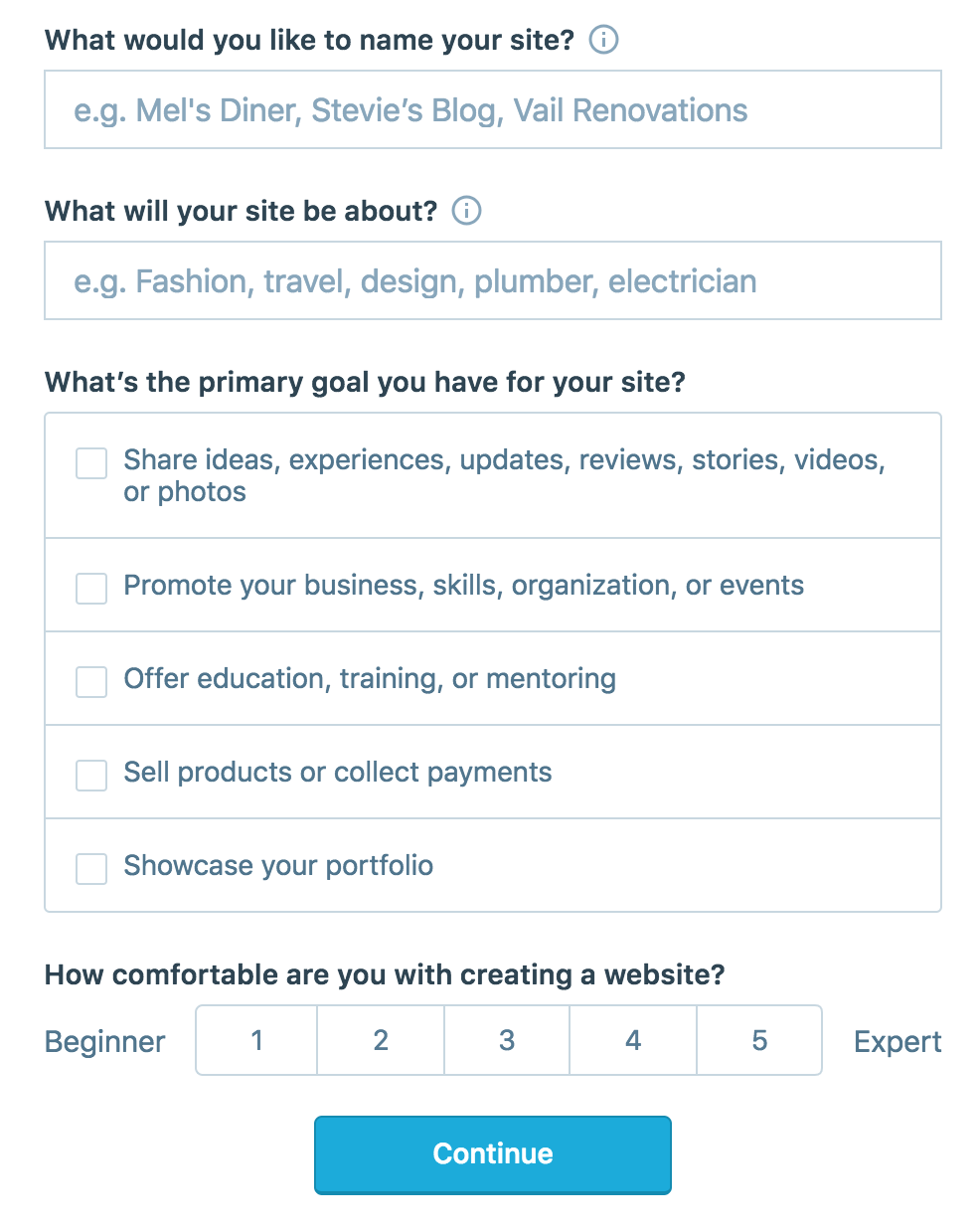
On the site, it will ask you for a site name. That page asks you a bunch of other information too, but you only have to fill out the site name.
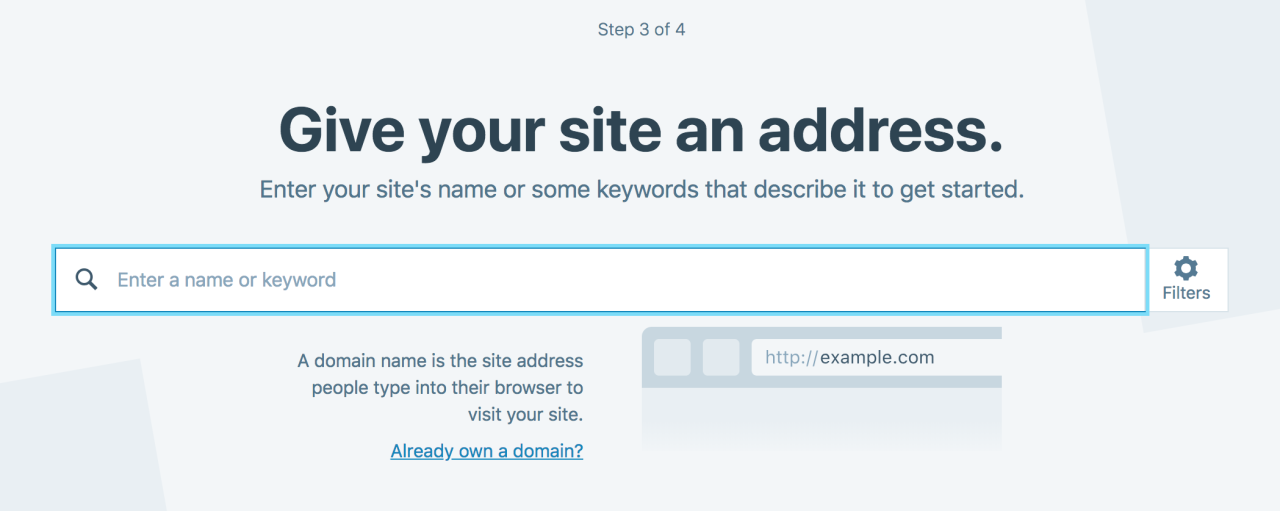
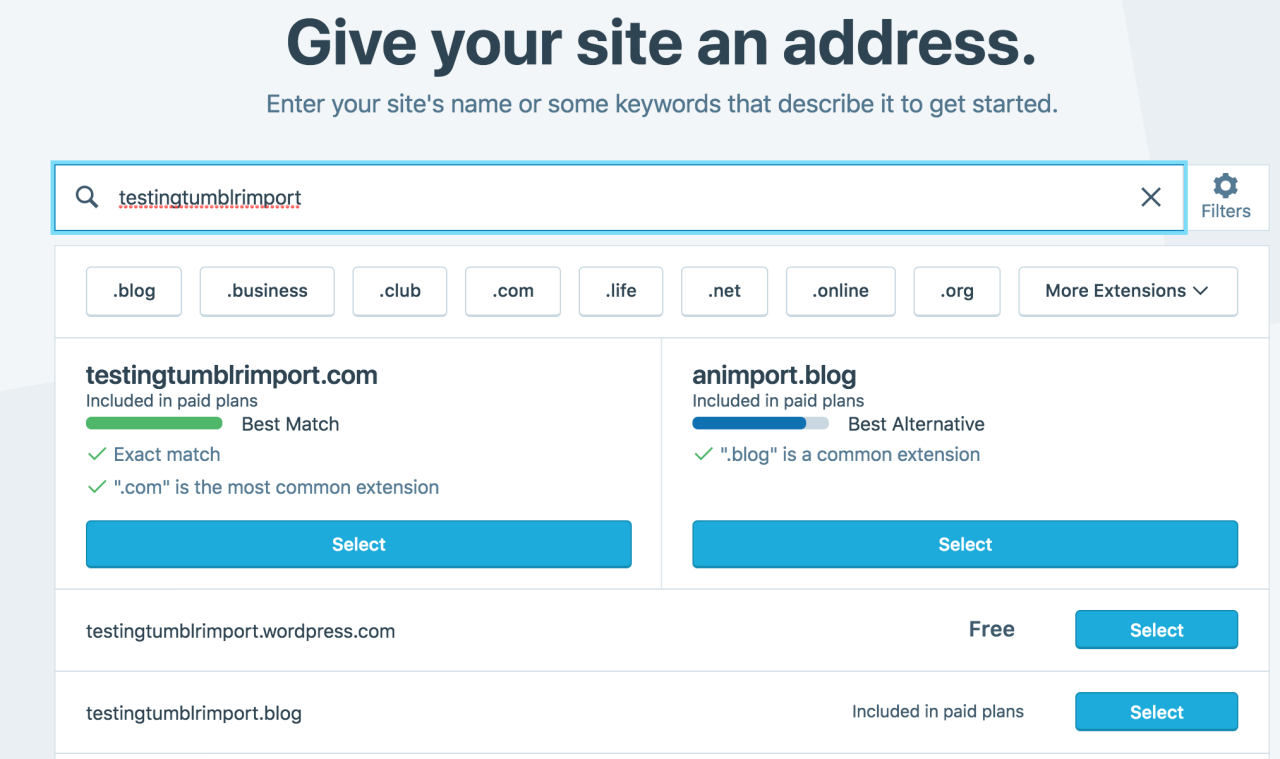
Then you have to give your site a URL. If you’re lucky, your tumblr URL is still available, if not you’ll have to come up with another one, sorry.
It will tell you if that option is still available for free.
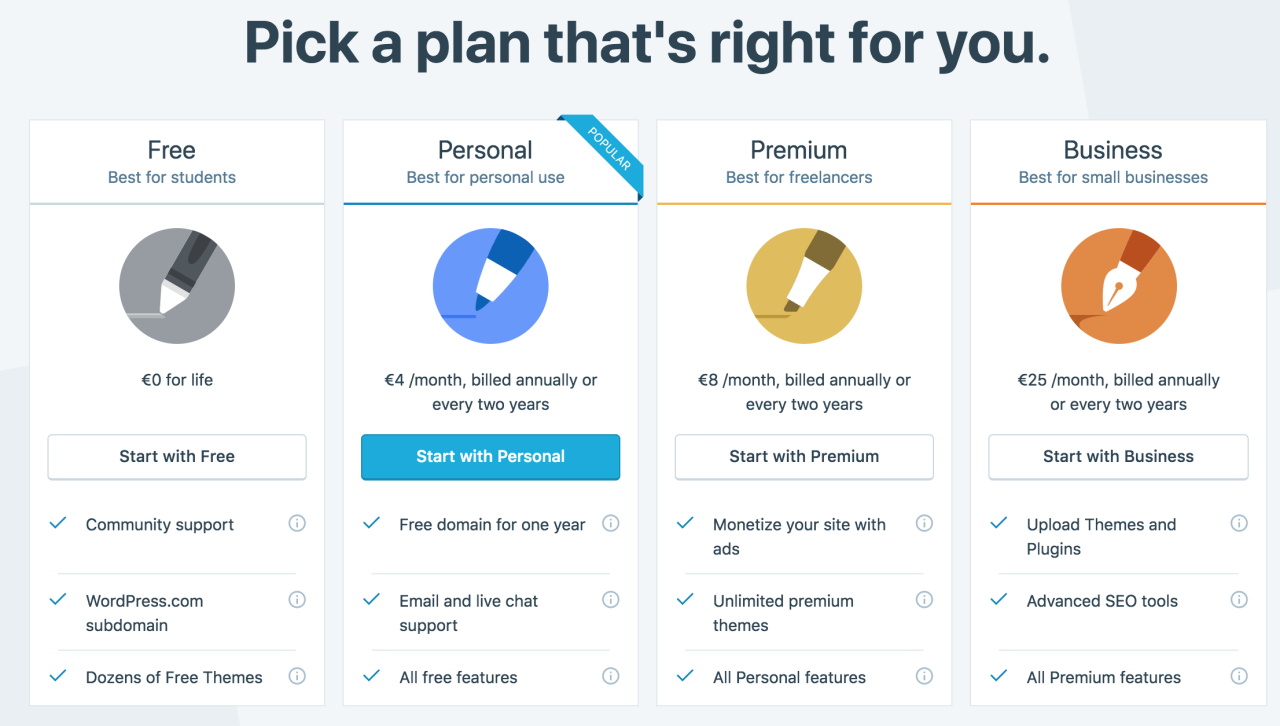
Then it will ask you to pick a plan. Free is really good enough, I swear.
Now you’re set up! You can import your tumblr!
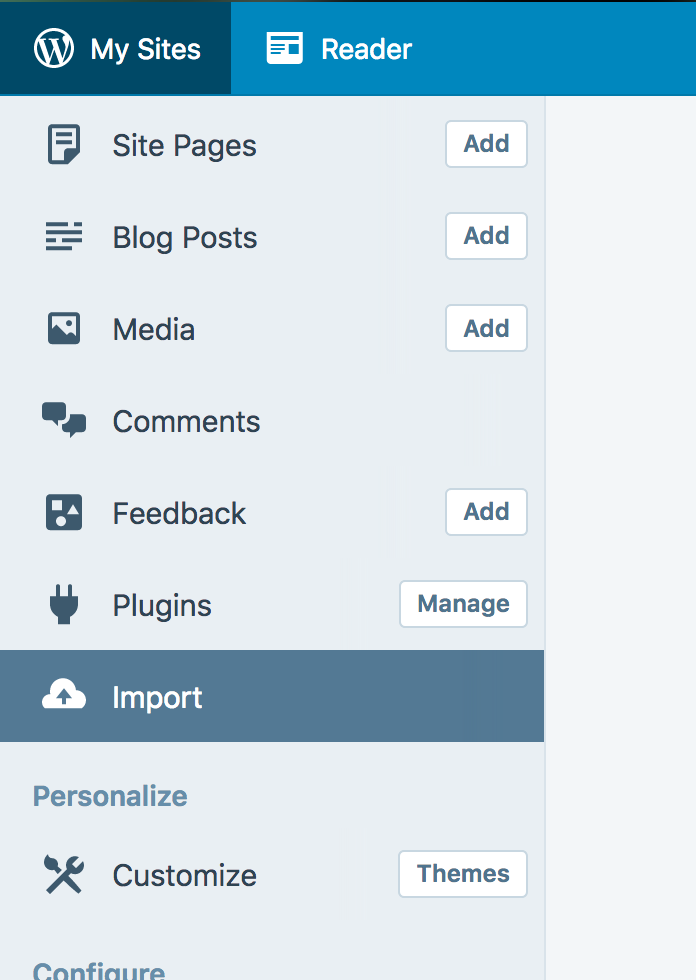
The only differences from the linked tutorial are that the Import button is now on the first level menu, not in tools.
Hit Import, then you have to follow the link for “other importers” at the bottom, to find the option for Tumblr.
Then you’ll have to sign in with tumblr, using your normal tumblr credentials. You’ll be redirected there automatically.
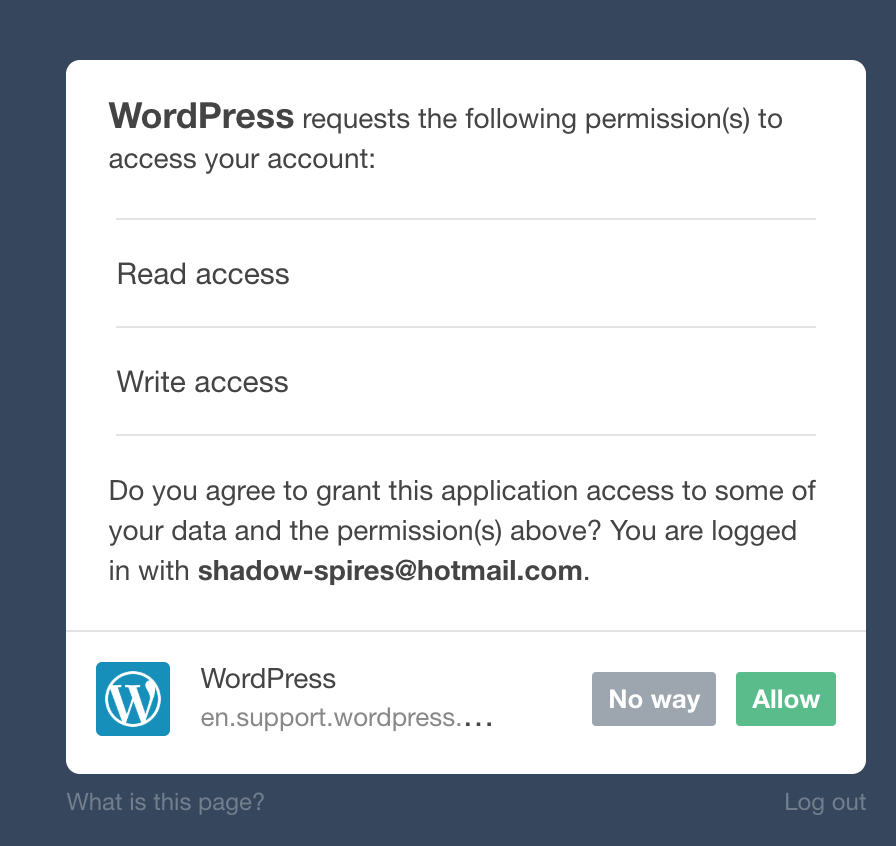
You’ll have to allow WordPress permissions on your blog.
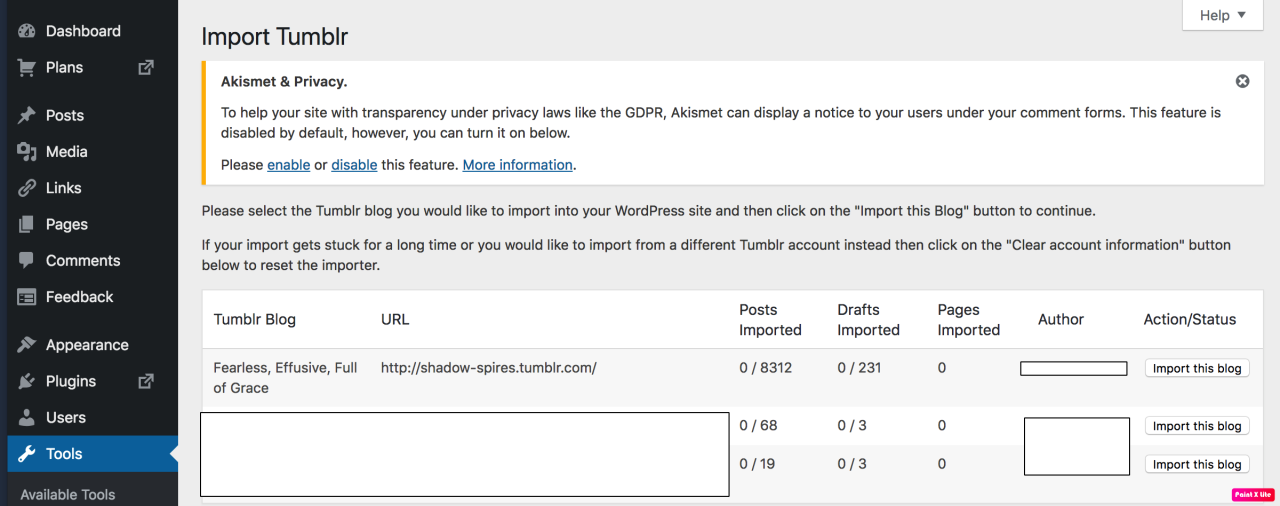
Then your blogs, including all your sideblogs, will show up in wordpress.
Hit import, wait a WHILE depending on the size of your blog, and you’re done!
ALSO!!
I made my NSFW blog private for now, since I don’t know WP’s policy on NSFW.
This means that to access it, someone has to have an account and request access. But hey, part of our problem on this hellsite has been people going places they aren’t wanted, so I don’t personally see this as a bad thing. They can send a request from the landing site on your blog, you get an email, click a link in the email, and PRESTO, they have access.
To make it private, go to Settings > Reading > Site Visibility. Go back and check, it took me changing the setting twice for it to actually stick.
tl;dr, you can import your entire blog to wordpress in just a few steps.
I’m going to tag the hell out of this, in no particular order. PLEASE reblog this and spread the word so people know it’s an option. If you’re having trouble, PM me, and I’m happy to help.




 Here for the underdogs